

Your Mac's sound, on your iPad
While you’re connected, the Mac’s sound plays where you are, and the Mac itself stays quiet.


Two ways to use it
Remote reaches your Mac over the internet, wherever you are, from an iPad, an iPhone or another Mac. Display turns your iPad into another screen for your Mac, over a cable.
Both are on Qispi’s home page, with every Mac you’ve paired and whether it can be reached right now. One tap connects.
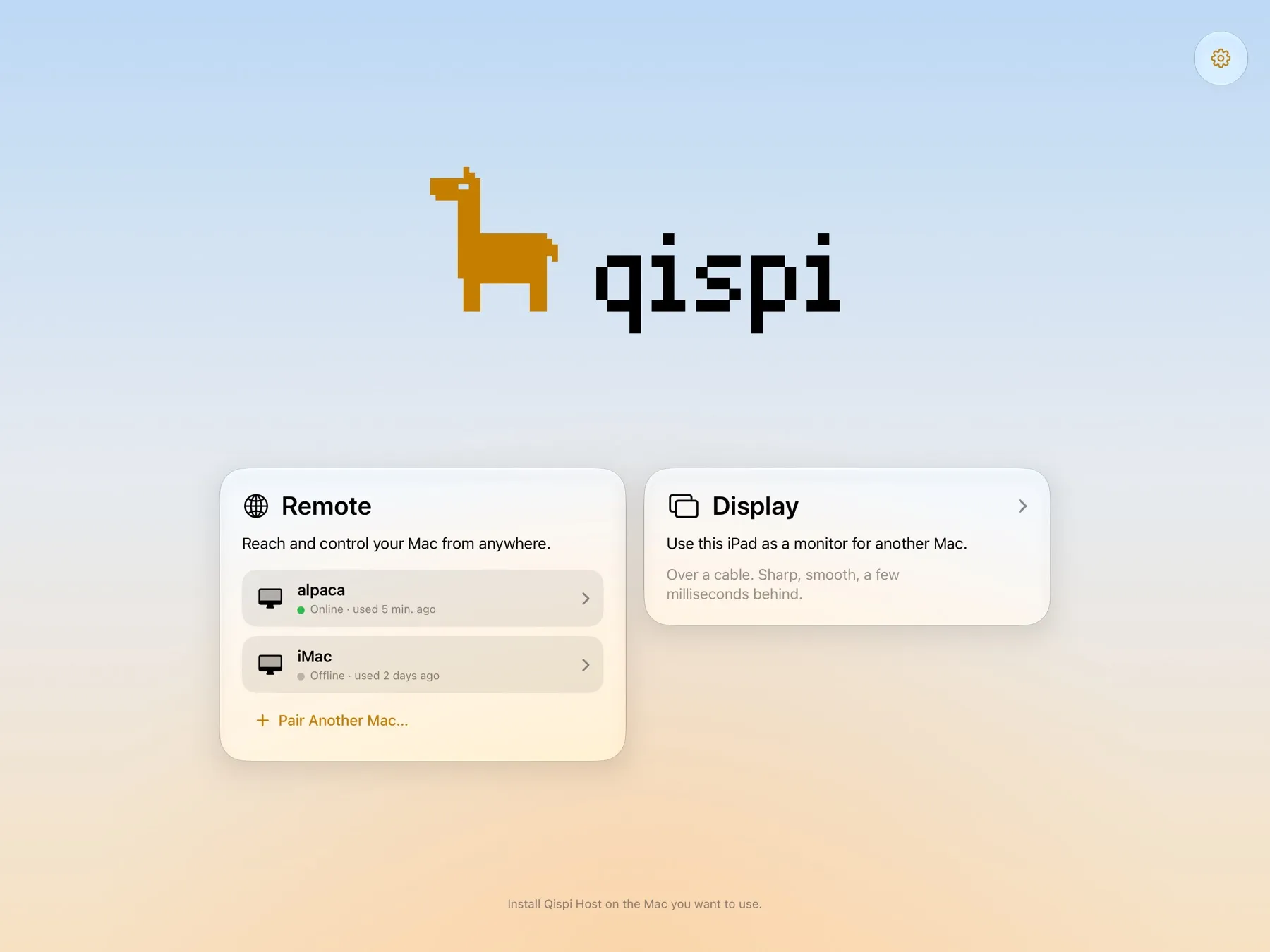
Remote
On a train, at a friend’s, over cellular: Qispi shows your Mac’s whole screen and you use it as if you were there. Touch to click and drag, a trackpad or a mouse for the pointer, a keyboard in your own layout.
It’s made for real connections, not perfect ones. When a bit of the picture is lost on the way, Qispi repairs it in a fraction of a second instead of starting over. On a slow connection the picture gets lighter and stays moving, then sharpens again as soon as it can.
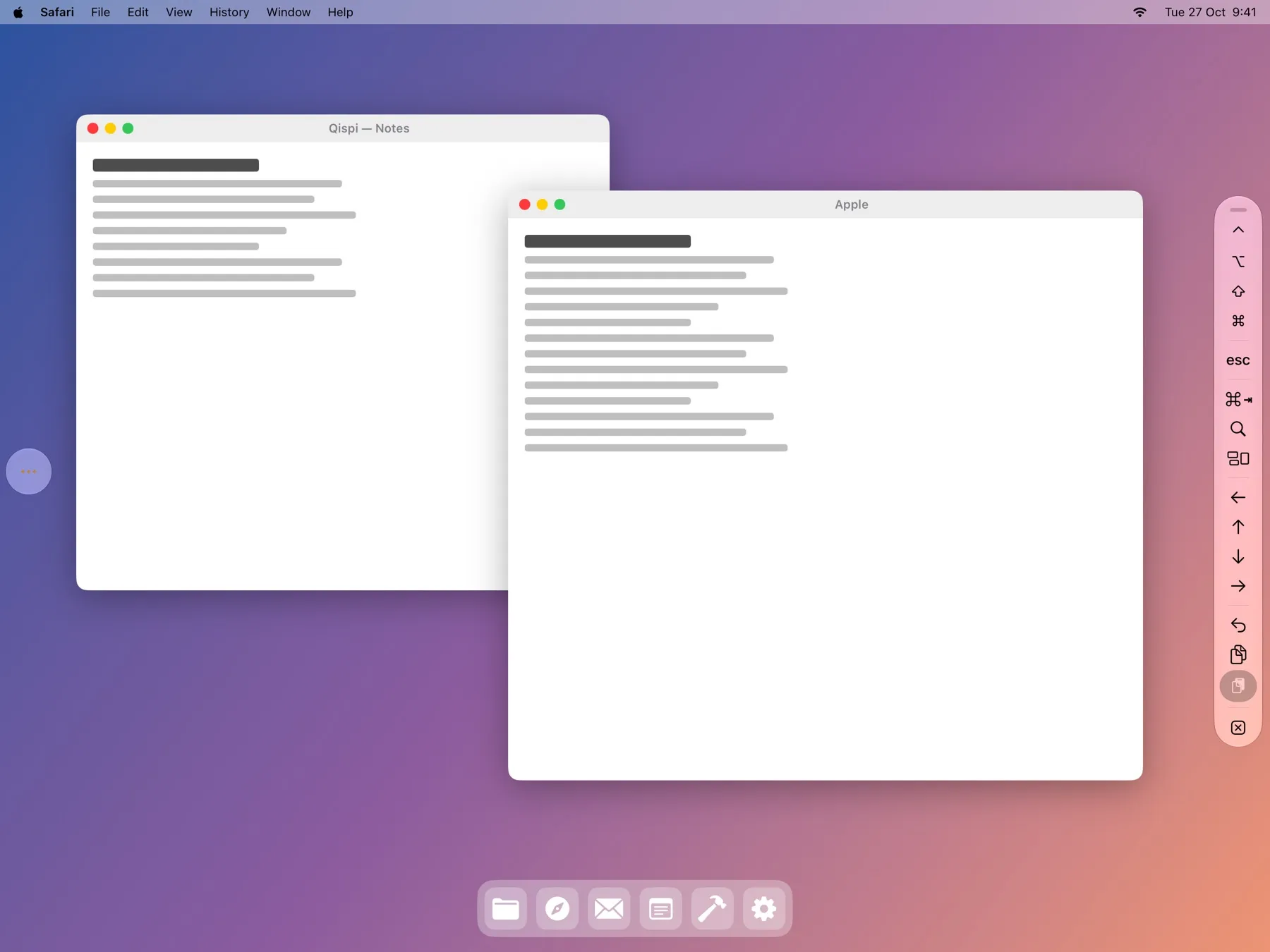
Remote, from a Mac
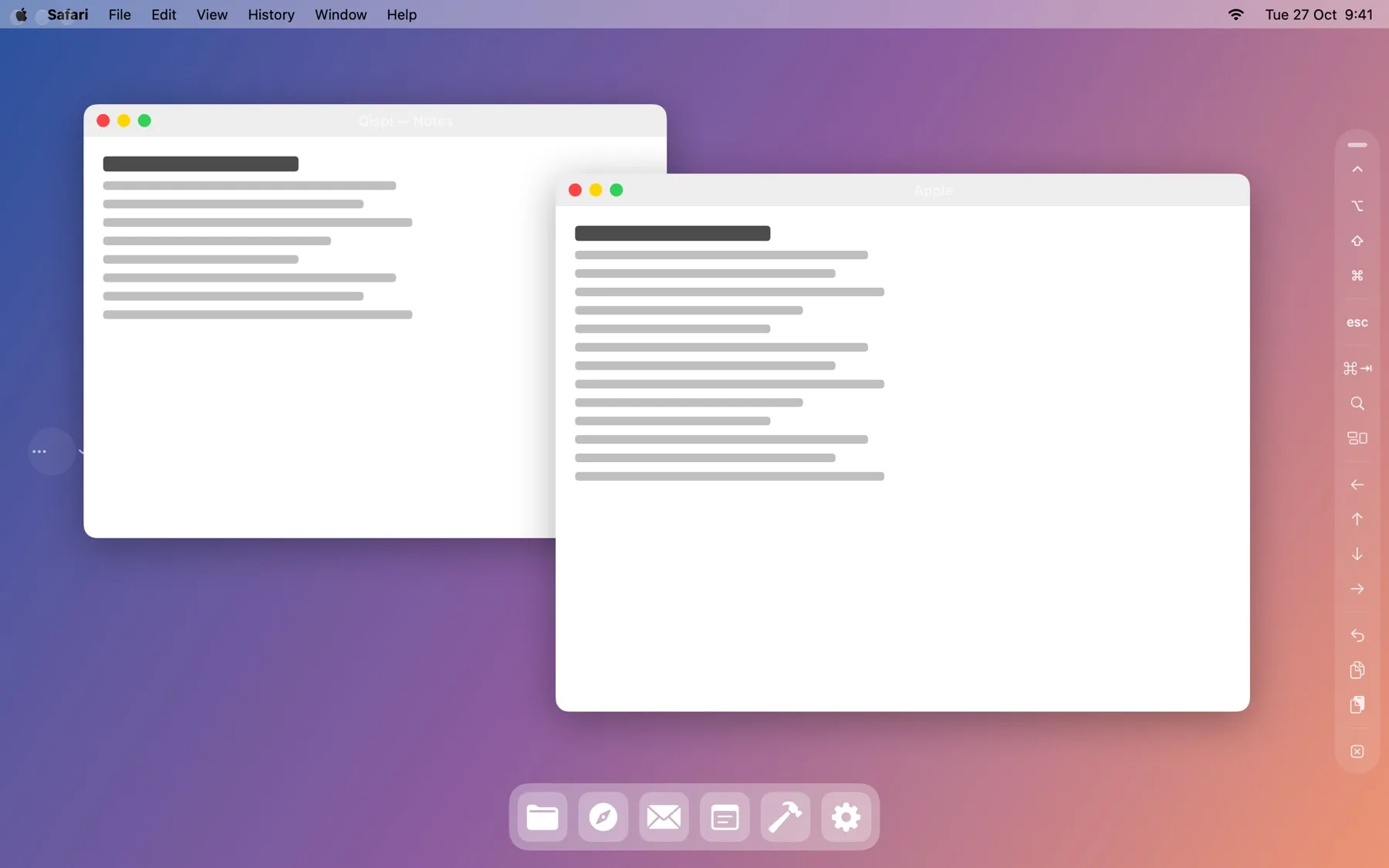
Qispi runs on a Mac too. Reach your desk Mac from your laptop, full screen, with your own keyboard and trackpad: shortcuts, ⌘-drag and ⇧-click all work as they do at the Mac itself.
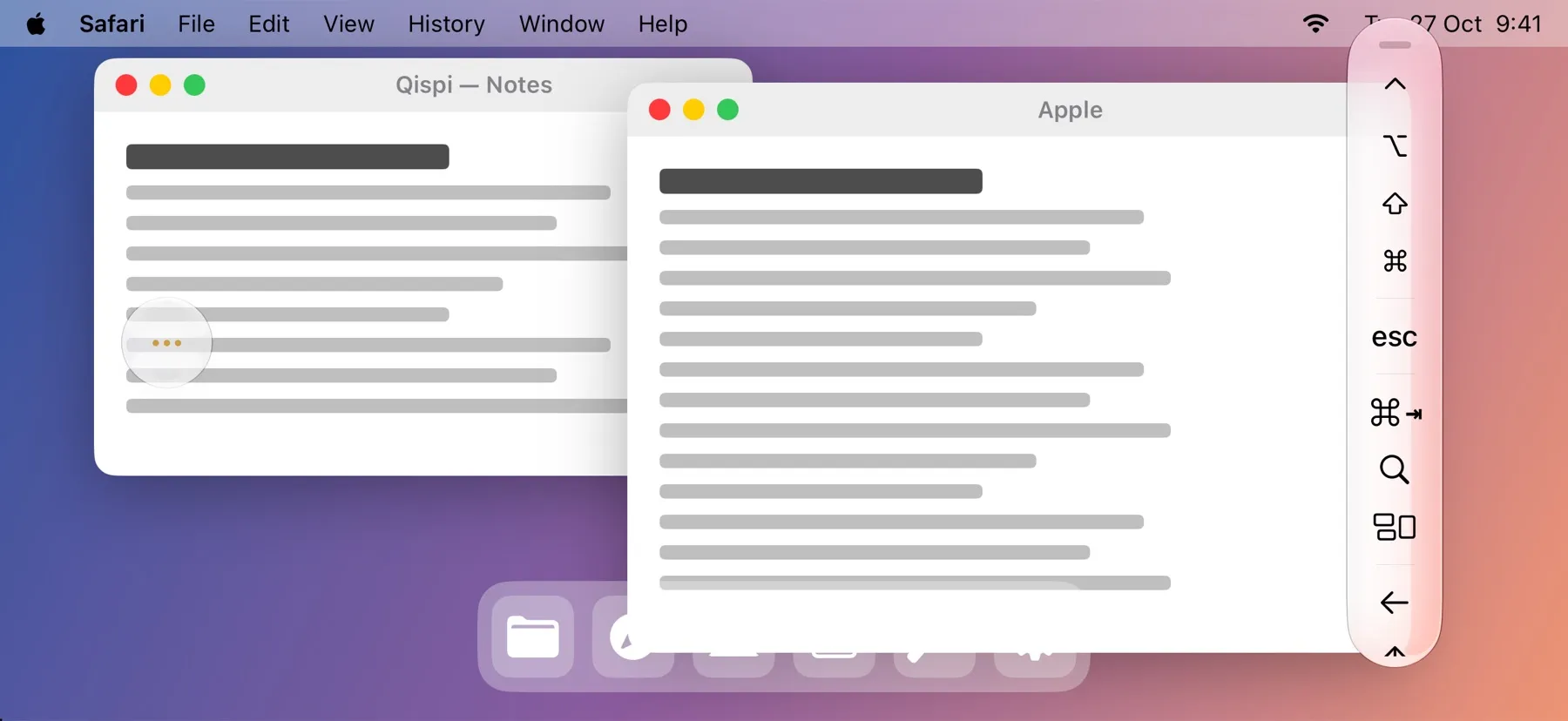
On iPhone
For the moment you just need to check something, restart an app or find a file. Pinch to zoom in on any part of the screen, move two fingers to look around.
The pointer
Your Mac’s pointer travels apart from the picture, and Qispi draws it on your device the moment you move. So it stays quick and precise even when the connection isn’t, and a trackpad on your iPad feels like a trackpad on a Mac.
The keys iPadOS keeps
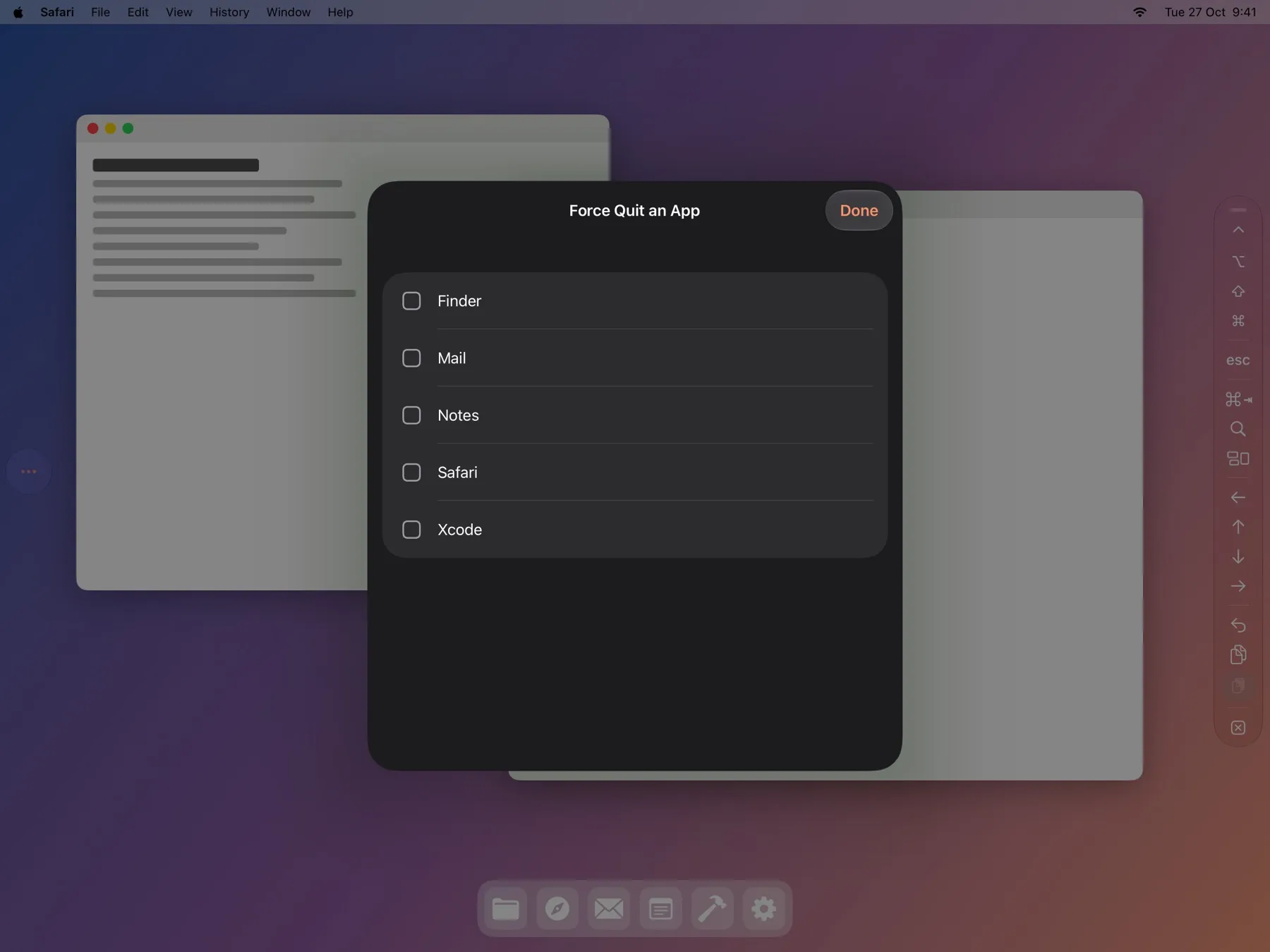
iPadOS keeps a few shortcuts for itself. Qispi’s shortcut bar has them: ⌘-Tab, Spotlight, Mission Control, Escape, the arrows, undo, copy and paste, and ⌃ ⌥ ⇧ ⌘ to hold for the next click. Force Quit lists your Mac’s open apps, to close one that’s stuck.
Display
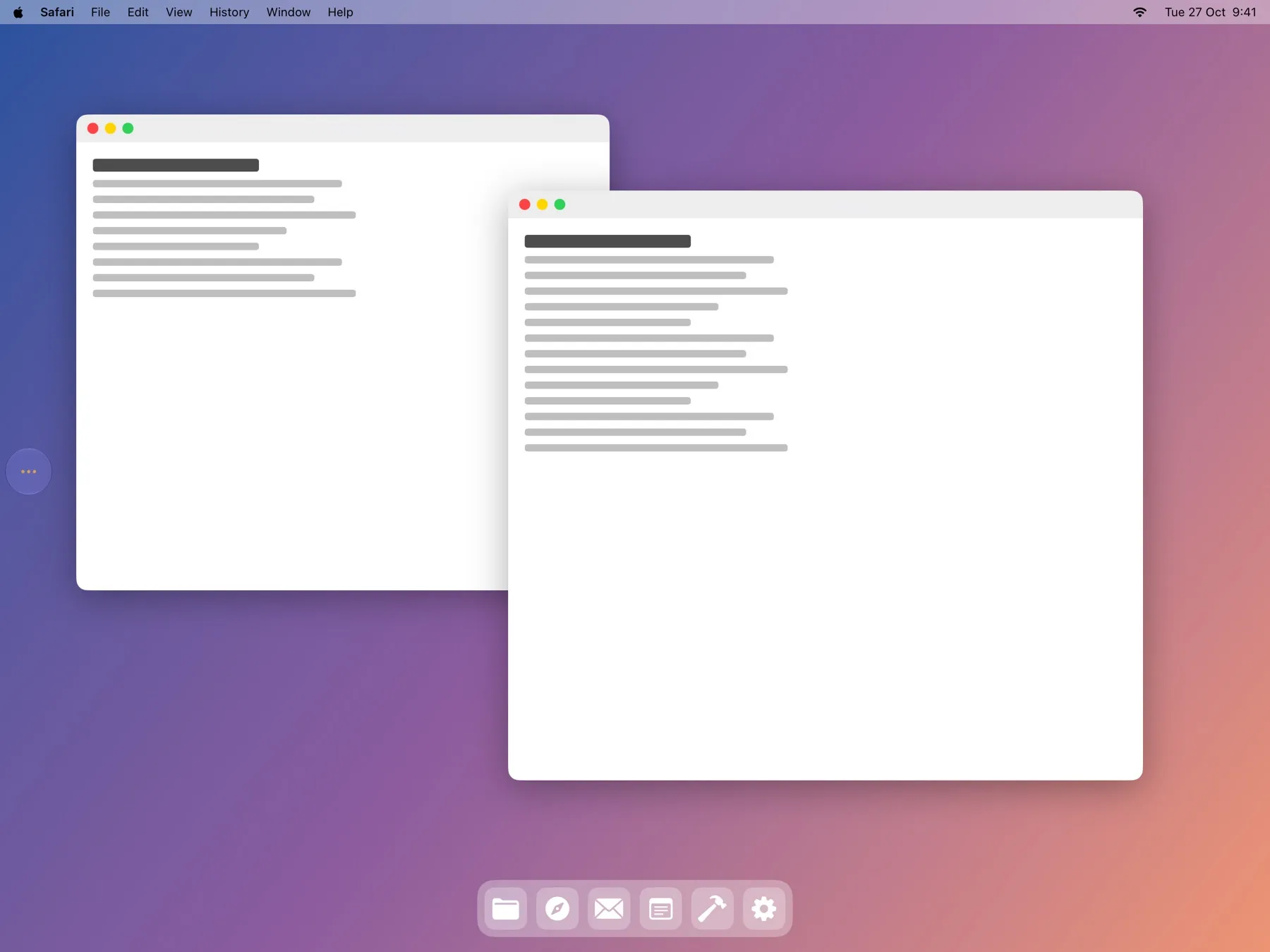
Connect your iPad to your Mac with a cable, and it’s another screen: drag windows onto it, use it with your Mac’s keyboard and mouse. Turn the iPad and the screen turns with it.
Not a video: every pixel reaches the iPad sharp, at up to 120 frames a second. We measured about 23 milliseconds from your Mac to the iPad’s screen, close to a real monitor.
Beyond the picture
Your Mac's sound, on your iPad
While you’re connected, the Mac’s sound plays where you are, and the Mac itself stays quiet.
Your iPad's camera and microphone, on your Mac
FaceTime, Zoom or Photo Booth on the Mac can use them, as “Qispi Camera” and “Qispi Microphone”. They only turn on while an app uses them.
The clipboard, both ways
Copy on the Mac, paste on the iPad. Copy on the iPad, and ⌘V on the Mac pastes it. Text and pictures.
Several Macs
Pair as many as you like: each one on the home page, with a green dot when it’s reachable. Switch from one to another during a session.
Private by design
A device can only use your Mac after you’ve paired it at the Mac, by scanning a code on its screen and approving it there. Everything between them is encrypted, with new keys for each session: the picture, your keys, the sound, the clipboard. Remote only goes through Tailscale, Display only over a cable. And Qispi asks for Face ID before connecting, so someone holding your iPad can’t reach your Mac. More about privacy.
Qispi Host
Qispi Host is the small app on the Mac you want to use. It lives in the menu bar as a llama, with a dot while a device is connected, and faded when something needs fixing, with what to do.
It keeps itself up to date, quietly, and only installs an update while nobody is connected. It starts again by itself if it ever stops.

1. Install Qispi Host on your Mac
Download it, drag it to Applications, and allow what it asks for. How
2. Get Qispi
Ask to join the beta: you’ll get Qispi for iPad, iPhone and Mac through Apple’s TestFlight.
3. Pair, once
At the Mac, Pair a New Device… shows a code. Scan it, approve on the Mac, and you’re done. How
| The Mac you use | macOS 15 Sequoia or later, with Qispi Host (made and tested on Apple silicon) |
| iPad or iPhone | iPadOS or iOS 26 or later |
| Another Mac, to reach yours | macOS 26 or later |
| For Remote | Tailscale, free, on both, with the same account |
| For Display | A USB-C or Thunderbolt cable to the iPad, or a Thunderbolt or Ethernet cable between two Macs |
Is it free? Yes, while it’s in beta.
Why Tailscale? It links your own devices to each other as if they were on the same network, safely, wherever they are, without opening anything on your router. Qispi only accepts connections that come through it. Setting it up
Does anything go through your servers? No. Your device talks to your Mac directly, through Tailscale or the cable. We don’t see your screen, your keys or your files.
And if my Mac restarts while I’m away? A few settings keep it reachable, even after a power cut. Keep your Mac reachable
Something doesn’t work? When something goes wrong, or write to [email protected].